
Our step-by-step guide on how to use Create

Create is the essential monitoring tool from PA Media that provides access to all of the our latest stories and other information sources to help users stay ahead of the news agenda. The latest version of Create offers fast and easy access to articles, images, curated social media, schedules and PA Media’s news diary, plus saved searches and email notifications that can be tailored for any area of interest.
With access to Create you will receive:
- 24/7 verified feed: Access PA Media’s trusted news coverage which is updated around the clock as stories break
- Search: Quickly search all of PA Media’s latest content in a single place
- Schedules: Track the news agenda using PA Media’s dynamically updated schedules
- Customisable: Follow stories and customise your updates
- Email notifications: Receive email notifications that match your interests, delivered in real time, or scheduled to a time of your choosing
- Mobile optimisation: Create is fully optimised for mobile, allowing for updates direct to your device

How do I log in to Create?
- Your email will be set up to access Create via the Explore site.
- When set up you will receive a confirmation email with a link or code to access the site.
- Following this link or entering the code takes you to the homepage.
Your login will last for 30 days, after which you will need to re-enter your email to get a further 30 days’ access via a link or code.You’ll be prompted and guided in this process.

Adding temporary users
- You can then create a temporary account for users on any email address, valid up to a specified date (maximum two weeks). You can cancel these seats from this page at any time.

- You can then create a temporary account for users on any email address, valid up to a specified date (maximum two weeks). You can cancel these seats from this page at any time.

Menu, search and latest content view
- The Create landing page presents a firehose view where you can easily browse or navigate to relevant content.
- Browse the firehose of available content by scrolling Search all content types using the search box.
- Filter by content area using the left-hand menu.
- View available asset types with icons on the right-hand side.
Colour codes
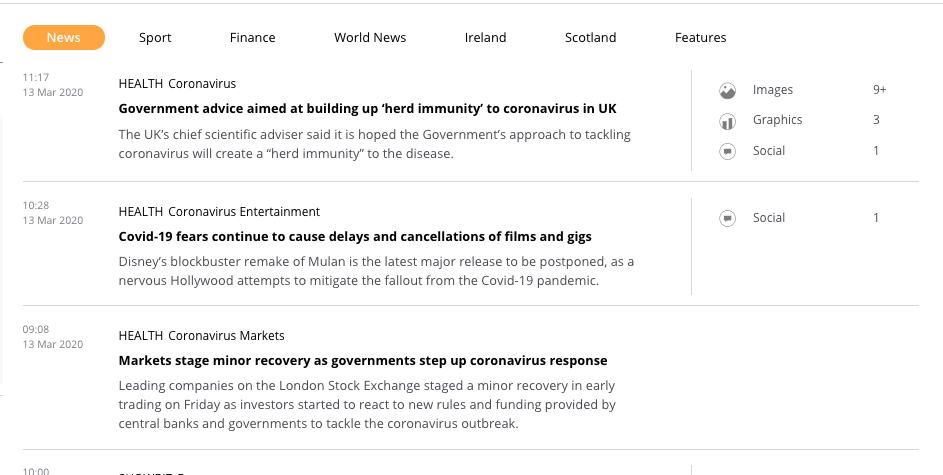
You can use Create to browse the latest content from the main page view.
All our full stories will appear as they are published, and images, graphics and social posts are also flagged to the right of the stories if there are any available.
The feed also includes a range of other, clearly labelled updates. These are outlined below.

The latest breaking news as it happens.

Keep up-to-date with PA plans for the day across words, pictures, video and graphics. Plus updates throughout the day on story plans, extra staff deployments, guidance from the courts, and much more from PA’s newsrooms.

Rapid text updates as the major stories update around the clock.

A range of releases from companies and institutions to complement the main PA service.

The menu on the left includes our search, service filters, and links to our Image & Graphics, Schedule, Diary, Email Notifications and Contact pages.
When you click into a story you can see all the text, images, graphics and social posts published that day that are associated with that story. When you click to open a story with multiple asset types it is shown like this:
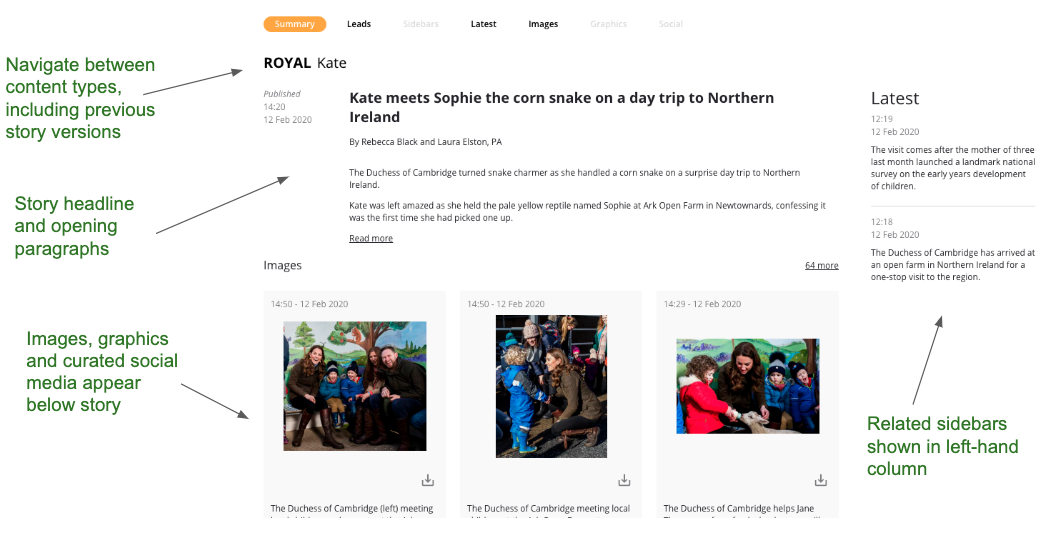
We call this an event. All the text and assets (images, graphics and social posts) that were published on one day will be linked from this event page.
Email notifications
Email notifications can be found in Create near the bottom of the menu bar on the left hand side of the page.
Here you can set-up and manage up to 20 different email notifications tailored to your specification.

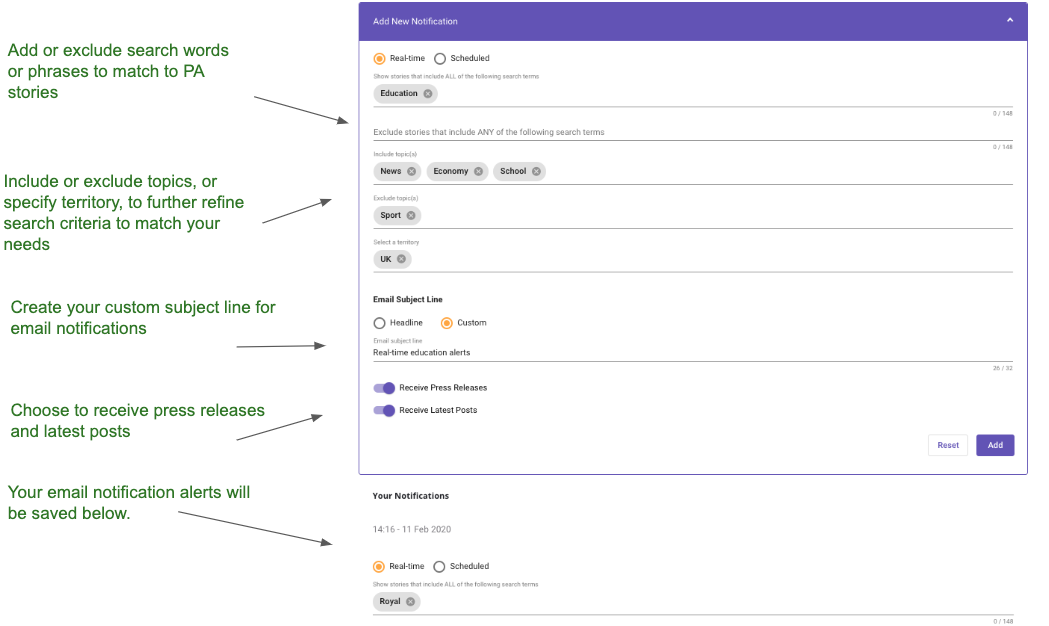
- Real-time notifications allow you to get the latest updates on news relevant to your chosen criteria, delivered direct to your newsroom or chosen device.
- Notifications can include official corrections, advisories and embargoed stories, depending on customer entitlements.
- You can set your notifications to include or exclude certain topics or territories.Latest text updates for developing stories or press releases can also be included.
- You can create a custom email subject line to encapsulate your search criteria, making it easier to know what’s arrived in your inbox.
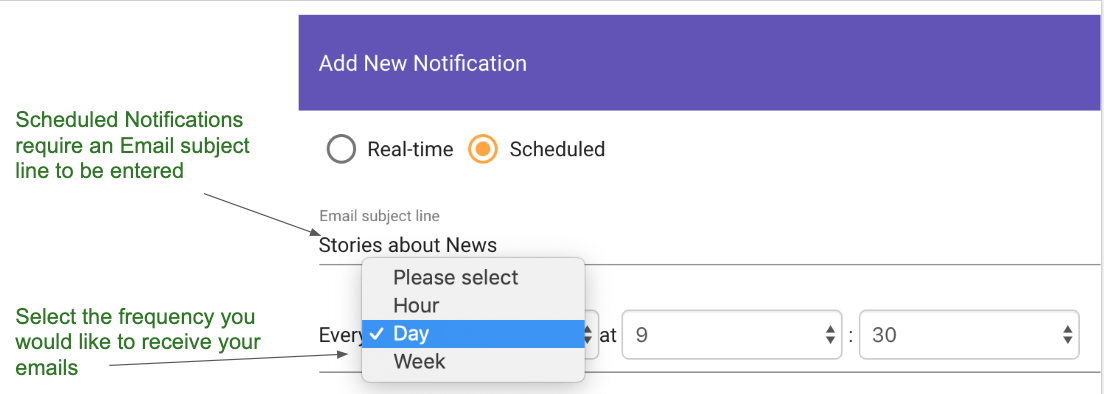
- Scheduled notifications allow you to set up regular updates that include all the latest stories that match your criteria. You can choose to receive regular email notifications (hourly, daily or weekly) that includes content that matches the criteria that you choose.
Refining email notification criteria
Example 1
If you use more than one keyword term as part of your notification criteria, you will only receive content where all those words are included.
- A search for ‘Boris’ and ‘Brexit’ will only return stories that include both those terms.
- More keywords return fewer but more specific results overall
- If you type multiple words and then press return this acts as a phrase.
If you include a multi-word phrase, there will only be matches where stories include all the words in this order.
Example 2
A search for ‘Duke and Duchess of Cambridge’ would only match to stories where ‘Duke’, ‘and’, ‘Duchess’, ‘of’ and ‘Cambridge’ appear next to each other and in the same order.
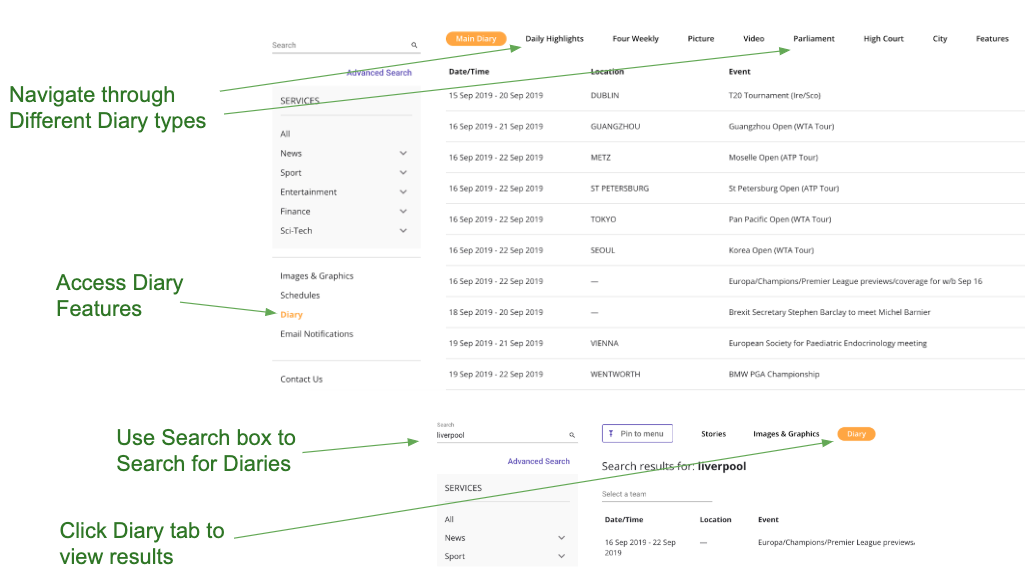
Diary
Create’s Diary is updated by our editorial team to give you a view of the day’s planned events and information releases, as well as access to longer term news planning information.
Daily Highlights (formerly ‘Daily Diary’): What’s happening today across the UK and world
Four Weekly:A forward planning diary of events over the next month
Picture Diary: The day’s photo opportunities
Video Diary: The day’s video opportunities
Parliament Diary: The day’s business at Westminster
High Court: The biggest stories planned at the High Court
City Diary: Company reports due to be published and financial events
Features Diary: A schedule of features material
Schedules
- Schedules show the running order of our most important stories, as chosen by our editors.
- You can view the News, Finance and World News schedules.
On-screen notifications
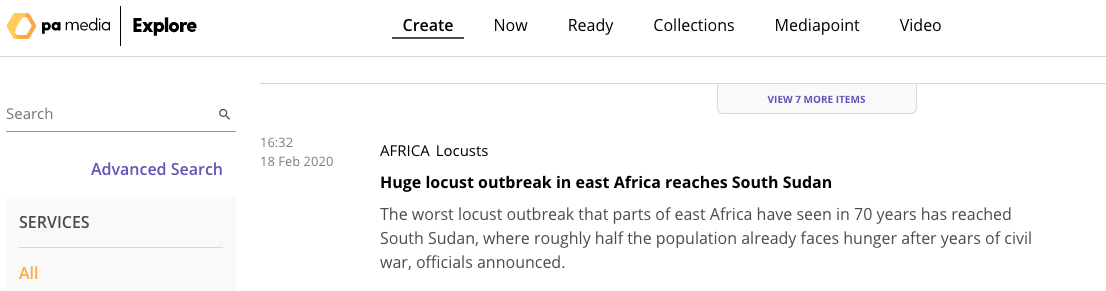
- In Create you will see notifications when new content is published. In the firehose view you will see notifications in the main column when new stories are available to view.
Pinned searches
- You can also pin an individual event – a specific topic and keyword combination – or custom search to the menu and then see “purple dot” notifications when that story or search updates again. To pin to the menu, use the blue icon, either ‘Pin Event” or ‘Pin to Menu’, at the top of the page.

Contact us
- The ‘Contact Us’ page can be found at the bottom of the left-hand menu and is an up to date list of all your key contacts at PA Media.